
From AVD to Windows 365: Migrating Personal Desktops with Nerdio
If you're running Azure Virtual Desktop with personal desktops and have been eyeing Windows 365, there's good news. Microsoft has built a Migration API that lets you move your existing AVD session hosts directly to Windows 365 Cloud PCs. No reinstalls, no data loss. While you could work with the API directly, Nerdio has built an excellent migration experience right into Nerdio Manager for Enterprise. Complete with a guided wizard that handles everything from host pool selection to license assignment. In this post, I'll walk you through the process step by step.
Introduction
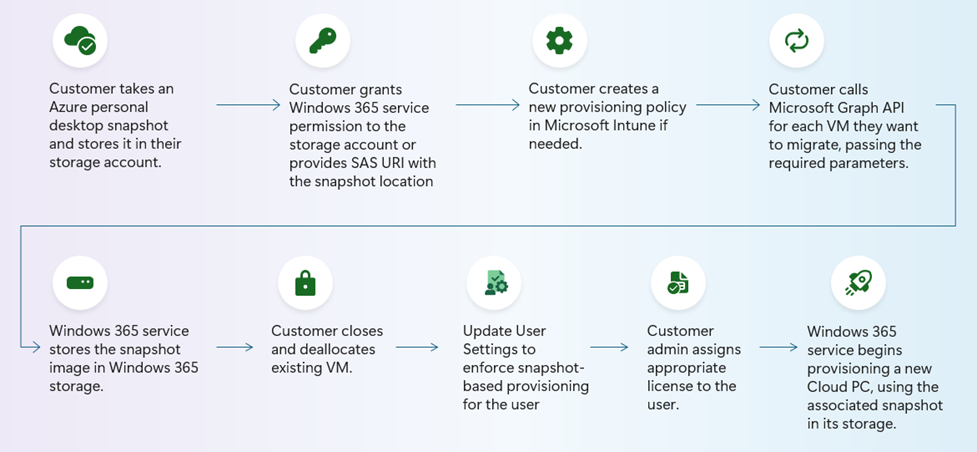
For a long time, migrating users from Azure Virtual Desktop to Windows 365 meant starting from scratch for your users. So, provision a new Cloud PC, reinstall apps, reconfigure settings, and hope nothing gets lost along the way. That's no longer the case. Microsoft now offers a Migration API that takes a snapshot of an existing AVD personal session host and turns it into a fully provisioned Windows 365 Cloud PC. The user's OS disk, apps, configurations, and personalization come along for the ride. It's a one-way ticket from IaaS-managed VMs to a Microsoft-managed Cloud PC, and it removes most of the friction that made this transition feel like a project on its own.
Benefits
So why would you want to move from AVD personal desktops to Windows 365 at all? Let's look at this from both sides.
For end users
- Consistent experience across devices. A Cloud PC follows the user, no matter the device. Also supports modern ways to connect like Windows 365 Link.
- Faster startup times. Cloud PCs are always ready. No waiting for a session host to spin back up.
- Self-service options. Restart, reset, or restore directly from the Windows App or the Windows 365 portal.
- Simplified connectivity. No workspaces, no host pools. Just open the Windows App and connect.
For administrators and operators
- No more VM lifecycle management. Patching, sizing, disk management, availability. All handled by Microsoft.
- Predictable cost model. A fixed per-user, per-month license replaces consumption-based billing. No surprise costs from forgotten deallocate schedules.
- Simplified provisioning. Assign a license, apply a provisioning policy, done. No host pools or session host configurations to maintain.
- Built-in Intune integration. Cloud PCs are Intune-managed devices out of the box, with compliance policies and conditional access ready to go.
- Reduced operational complexity. No Azure networking for session hosts required by default, no load balancing, no autoscaling rules. The infrastructure layer is abstracted away.
Requirements
Before you kick off a migration, there are a few things to check. The Migration API has clear boundaries, and not everything is supported yet.
What you need
- AVD personal (single-session) desktops only.
- Gen2 VMs running Windows 10 or later.
- A healthy Azure VM agent on every session host you want to migrate.
- Windows 365 Enterprise licenses assigned to the target users, sized to fit the OS disk of the source VM.
- Nerdio Manager for Enterprise v7.4.1 or higher with the following Intune permissions configured: Intune managed devices (at least read-only), Group membership (manage), and Windows 365 (manage).
What's not supported
- Multi-session or pooled host pools.
- Gen1 VMs or VHDX/dynamic disk formats.
- Data disks (only the OS disk is migrated).
- Third-party agents on the source VM (must be uninstalled before migration).
- Government cloud and GPU-enabled Cloud PCs (may come in future phases).
Further reading
For the full list of requirements and technical details, check the official documentation:
- Migration to Windows 365 – Microsoft Learn
- Migrate from AVD to Windows 365 Cloud PCs – Nerdio Manager for Enterprise
Background
In my environment, I provide fairly beefy personal desktops based on Standard_D8s_v6 VMs for external developers. These machines are configured for development workloads, with custom tooling, apps, and user-specific settings that have grown over time.
To simplify deployment and day-to-day operations of the desktop farm, the plan is to deliver future machines as Windows 365 Cloud PCs. But before that, I want to migrate the existing AVD session hosts first, so current users don't have to start over.
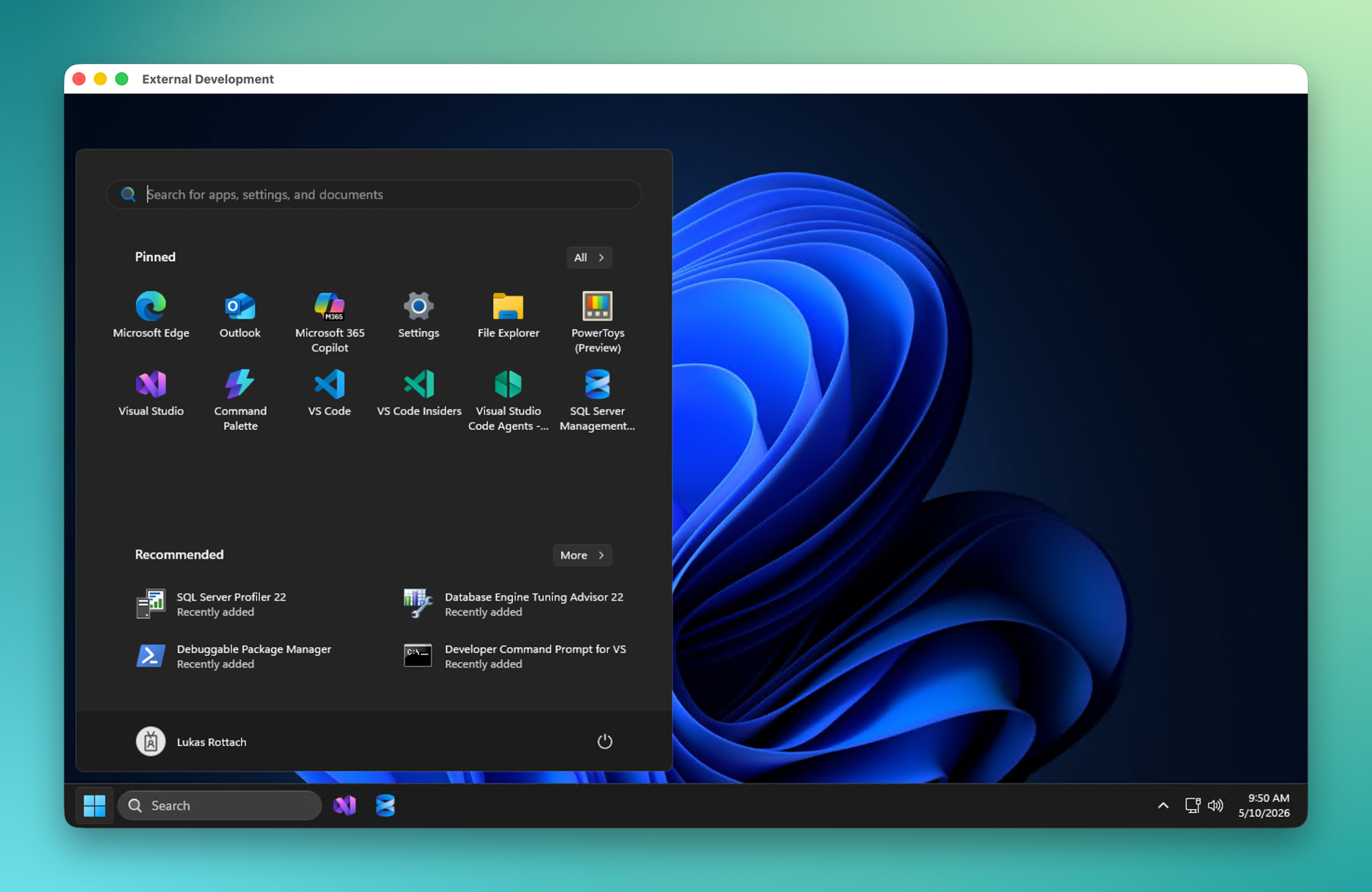
The machine I'm migrating in this walkthrough is not a clean base image. It's been actively used with applications installed, settings configured, desktop personalized. That's exactly the point. The Migration API preserves all of that.
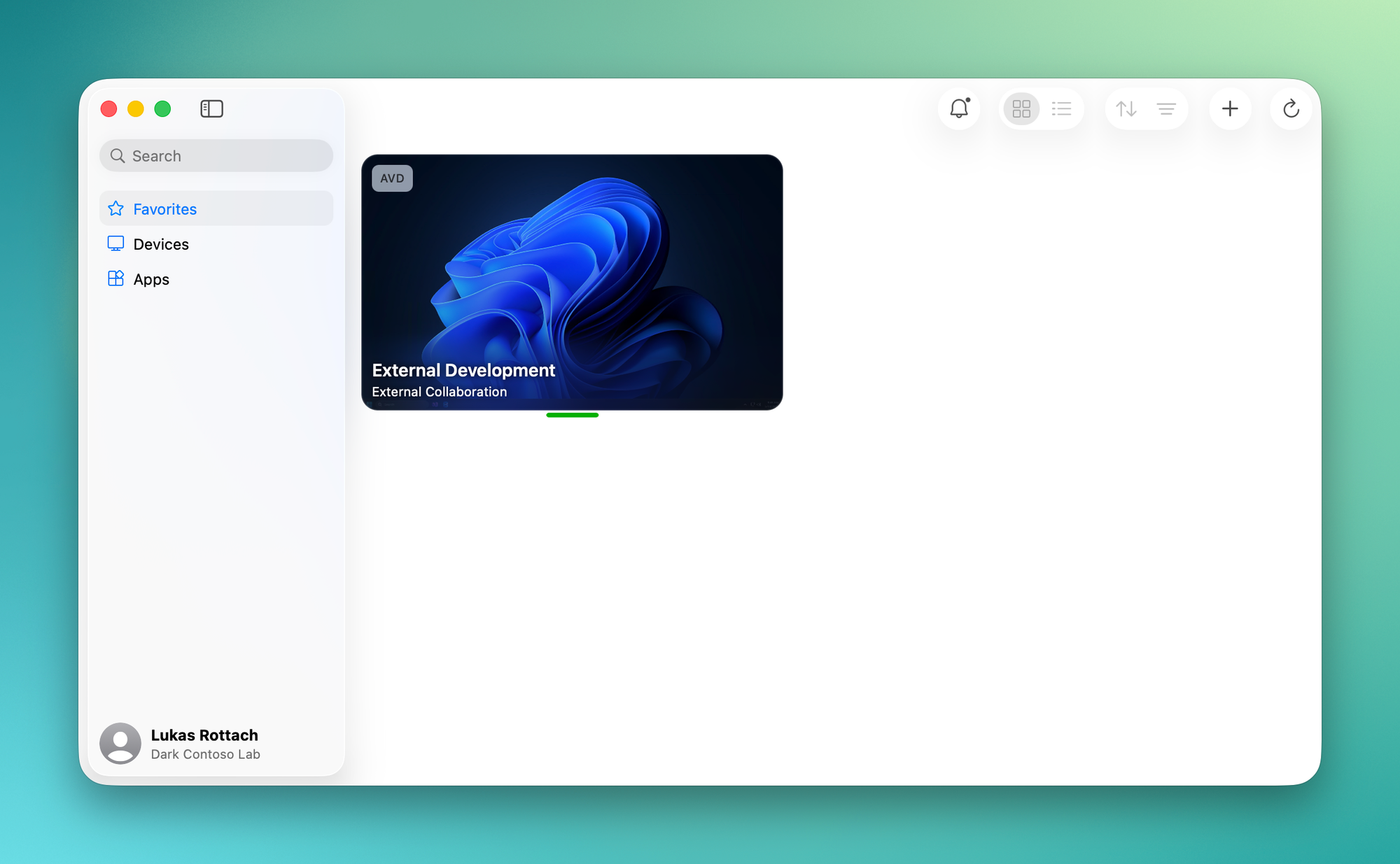
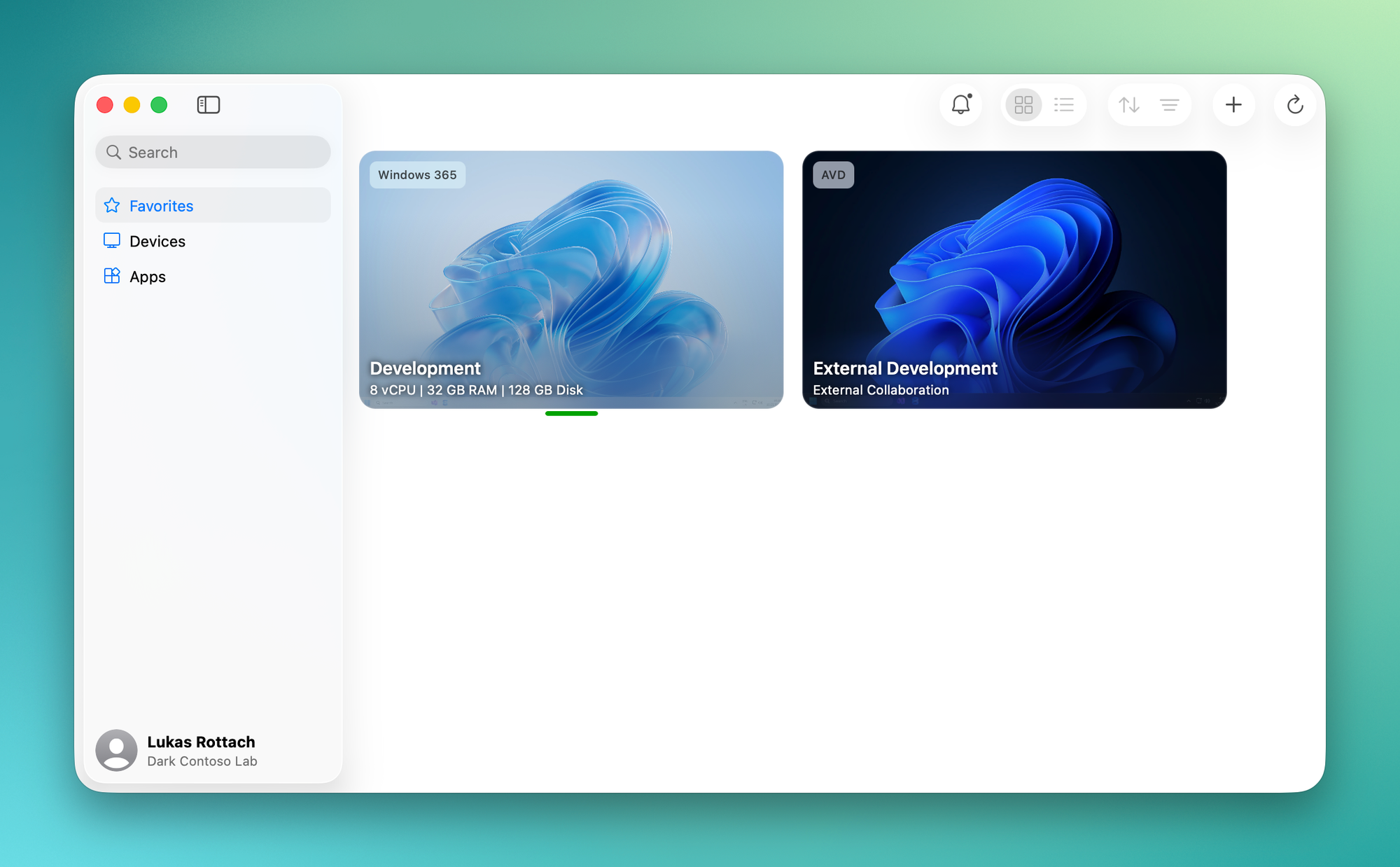
When I open the Windows App on macOS, I see exactly one machine. My personal desktop used for development.
As you can see here, this machine was fully customized by the developer with loads of applications installed.
Let's see what we can do and jump right into the migration.
Migration
Nerdio Manager for Enterprise supports multiple migration scenarios, giving you flexibility depending on the scale of your move.
Migration scenarios
- Individual host: Migrate a single session host from a host pool. Useful when you want to test the process with one user first or handle a one-off migration.
- Individual host pool: Migrate all session hosts within a single host pool at once. This is a good fit when a host pool maps to a specific team or department and you want to move them together.
- Bulk host pools: Select multiple host pools and migrate them in one go. The right choice when you're rolling out the migration across the organization and want to move large groups in a single operation.
For this walkthrough, I'll keep it simple and migrate a single host pool. The workflow is the same regardless of scope. Nerdio walks you through a wizard that handles all the settings, assignments, schedules and provisioning.
To start into the migration setup, we open our Nerdio Manager for Enterprise portal and look for the host pool we want to migrate. Jump right into the settings under Hosts and then Migrate to Windows 365.
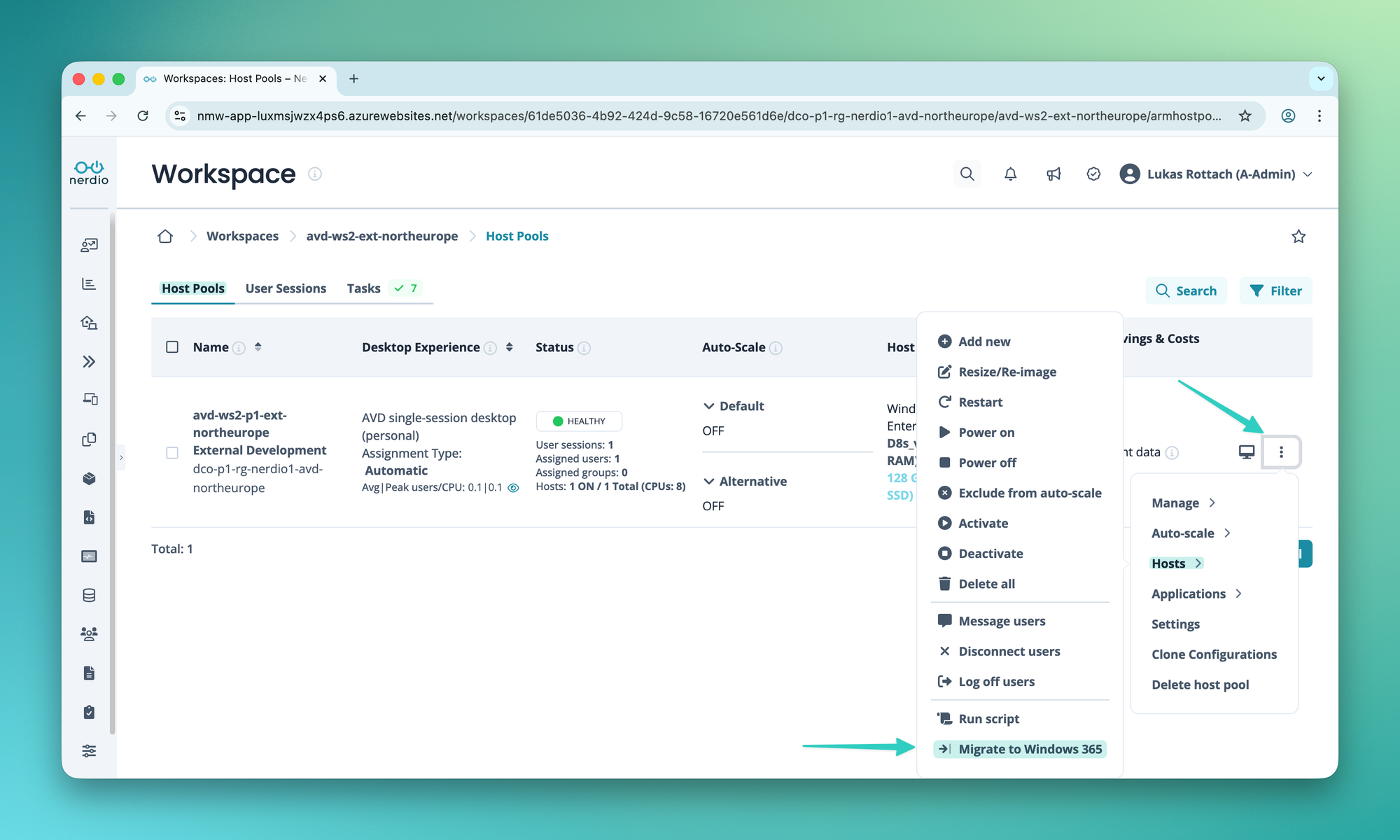
Nerdio presents you with a step-by-step wizard that guides you through the entire migration process. First up, select a Windows 365 provisioning policy. I'm using a pre-configured one here, but you could also create a new policy directly within Nerdio.
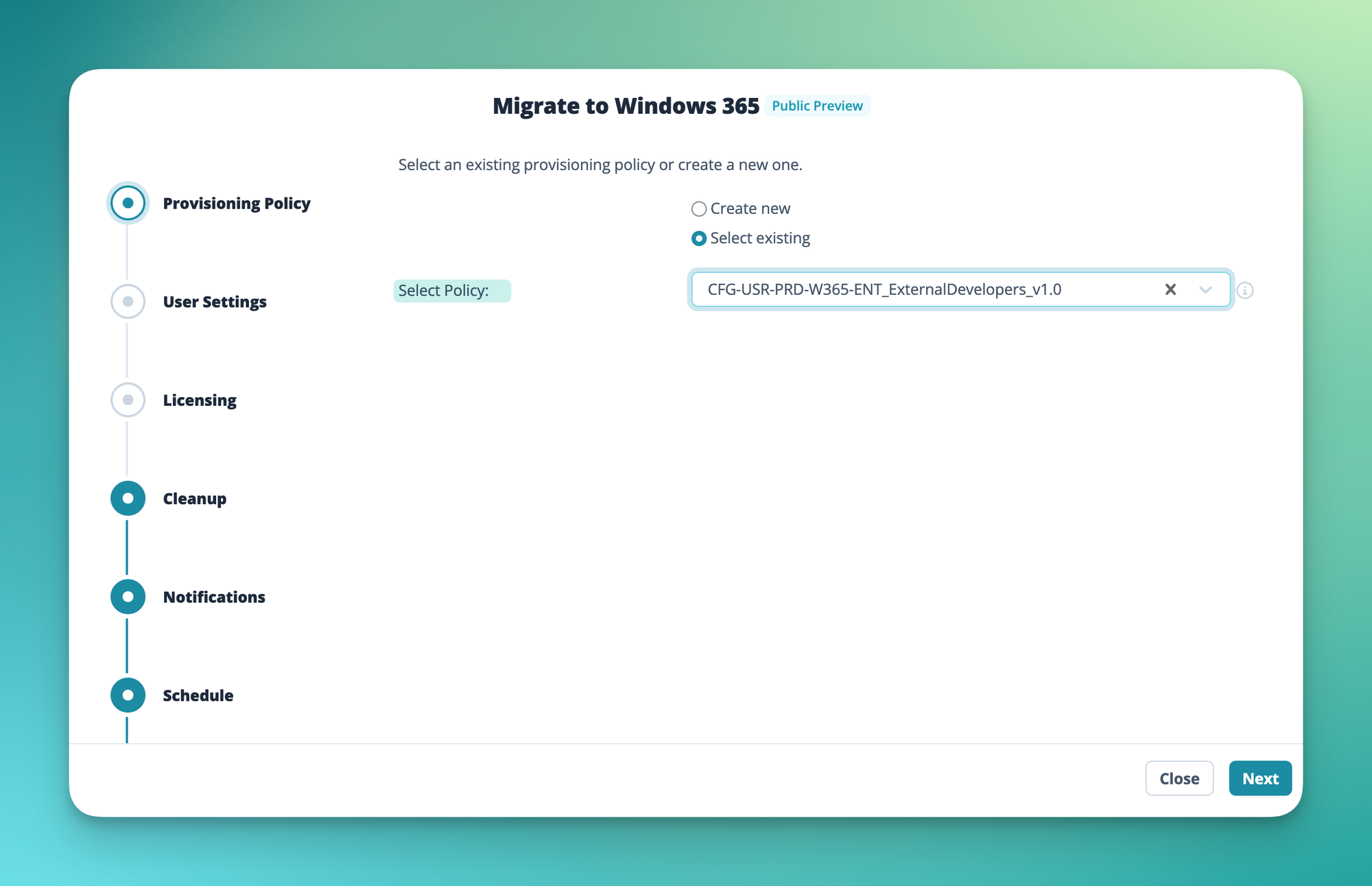
Next, we need a user settings policy. In my case, I'm creating one right here in the wizard.
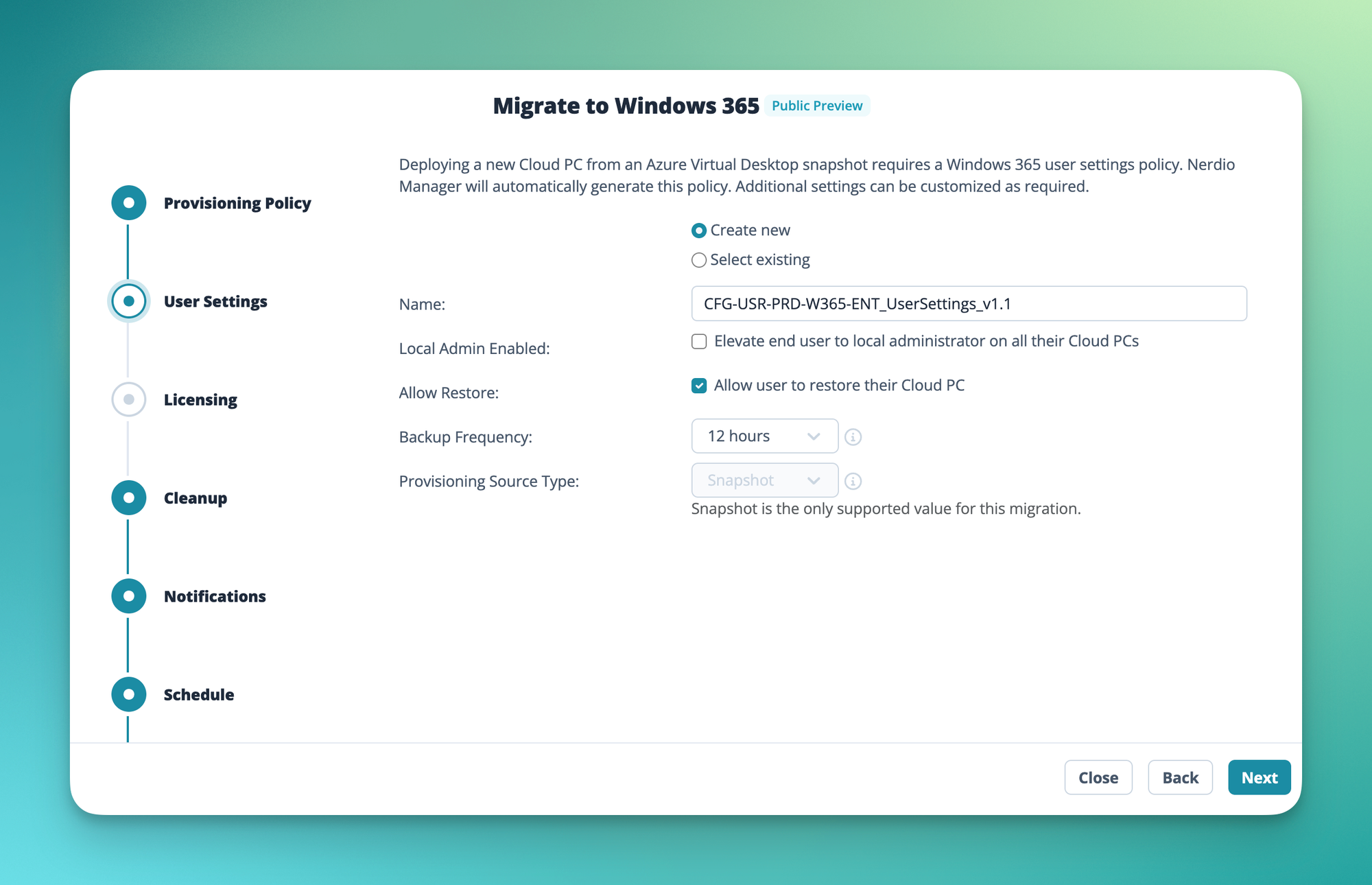
Great. Then we select the Entra ID group that has our Windows 365 licenses assigned.
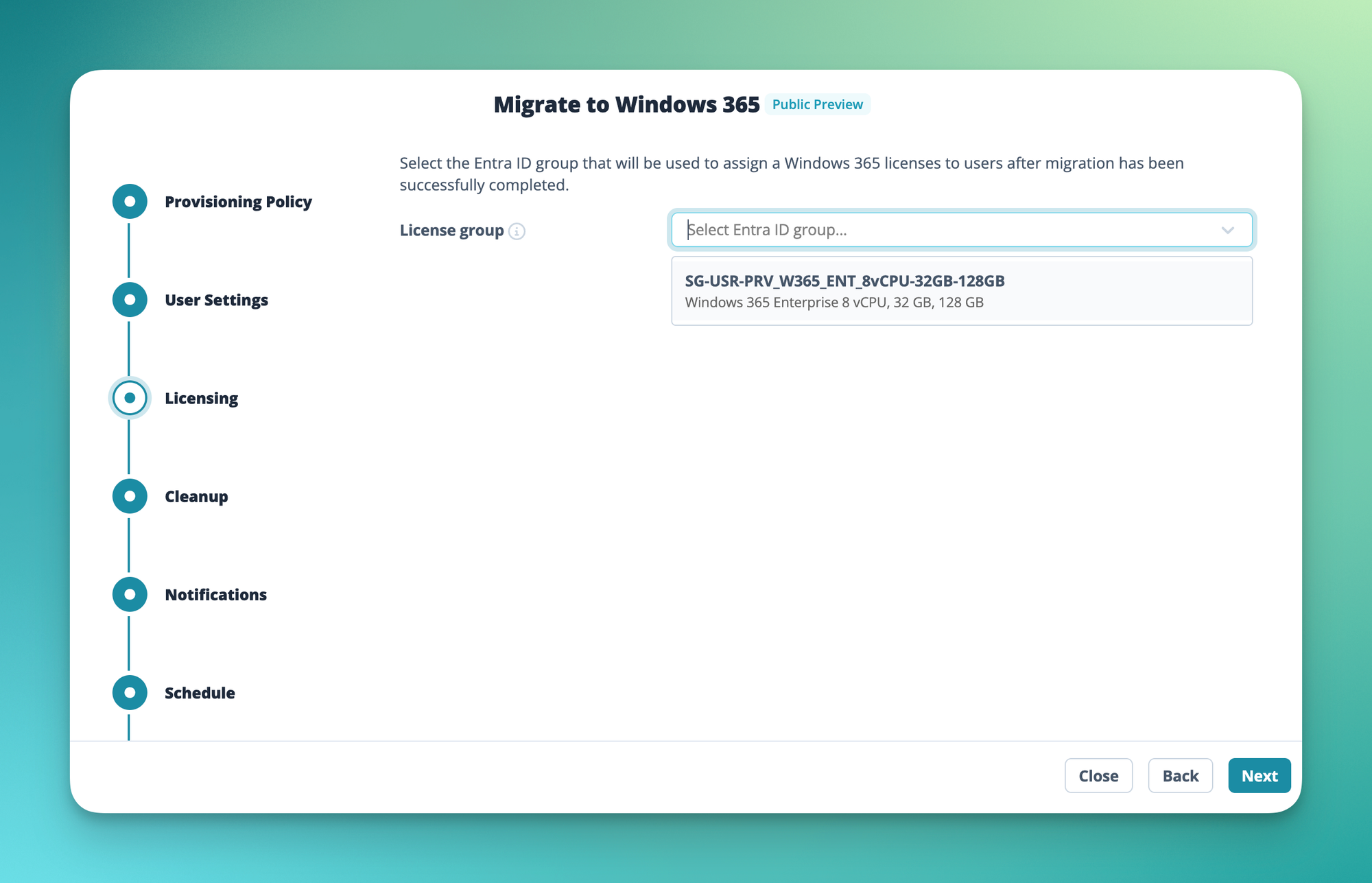
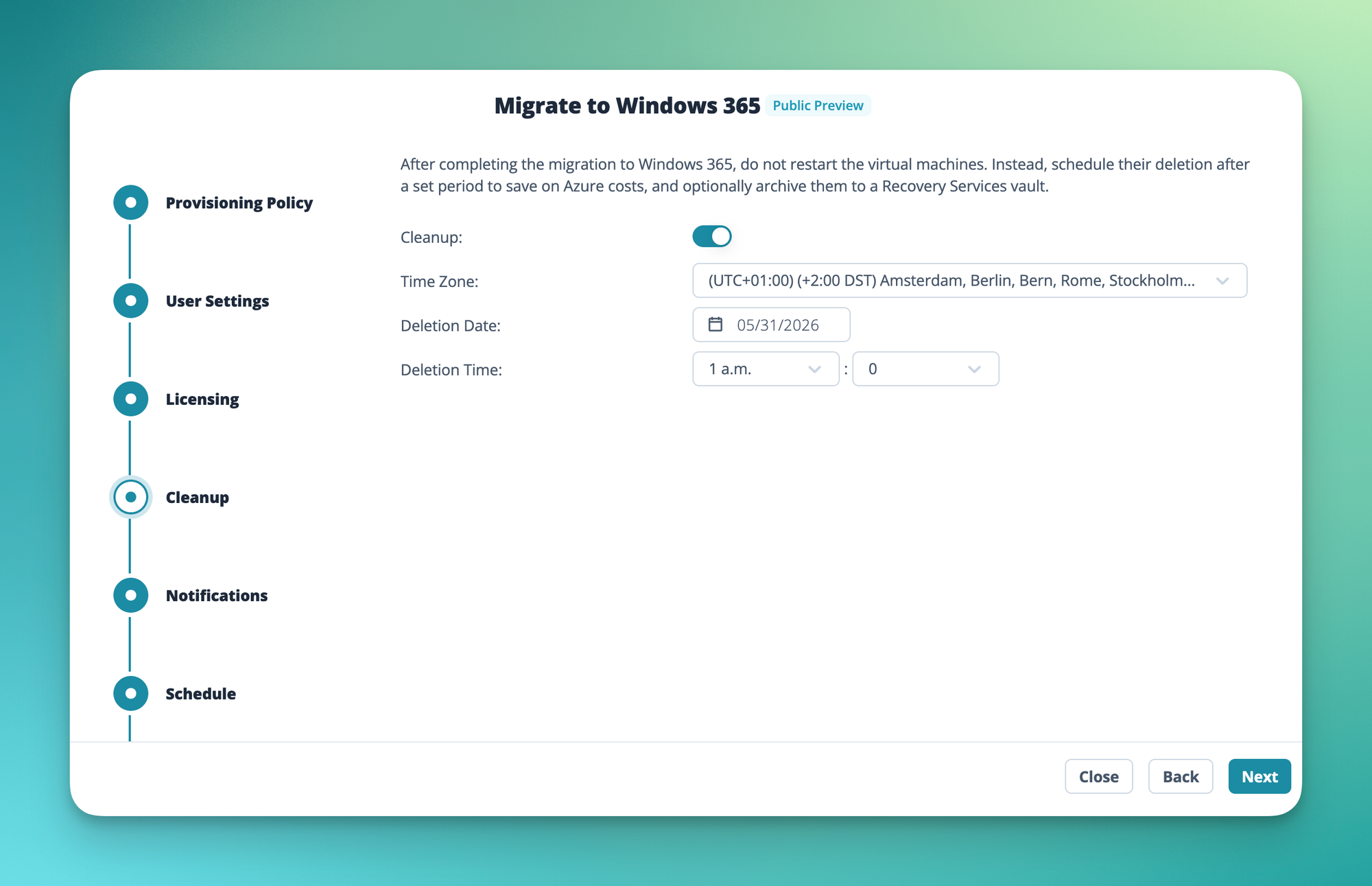
This is a feature I really appreciate. Nerdio lets you schedule the cleanup of your old AVD session hosts after the migration. I'd recommend deleting these resources as soon as possible to avoid unnecessary costs, but you can also schedule the cleanup for a later time if needed.
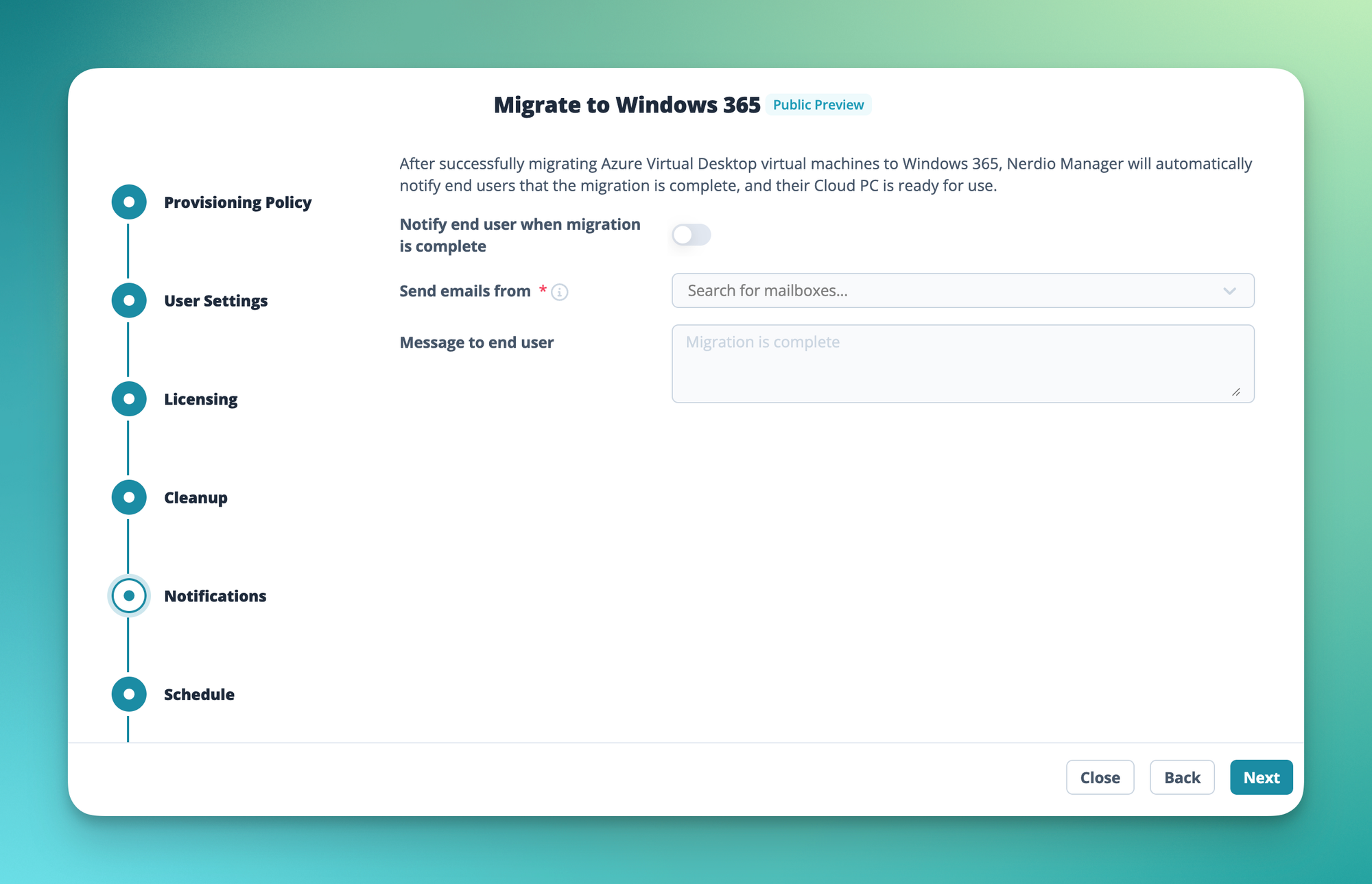
Optionally, you can enable end user notifications. This sends the user a message when their new Cloud PC is ready to use.
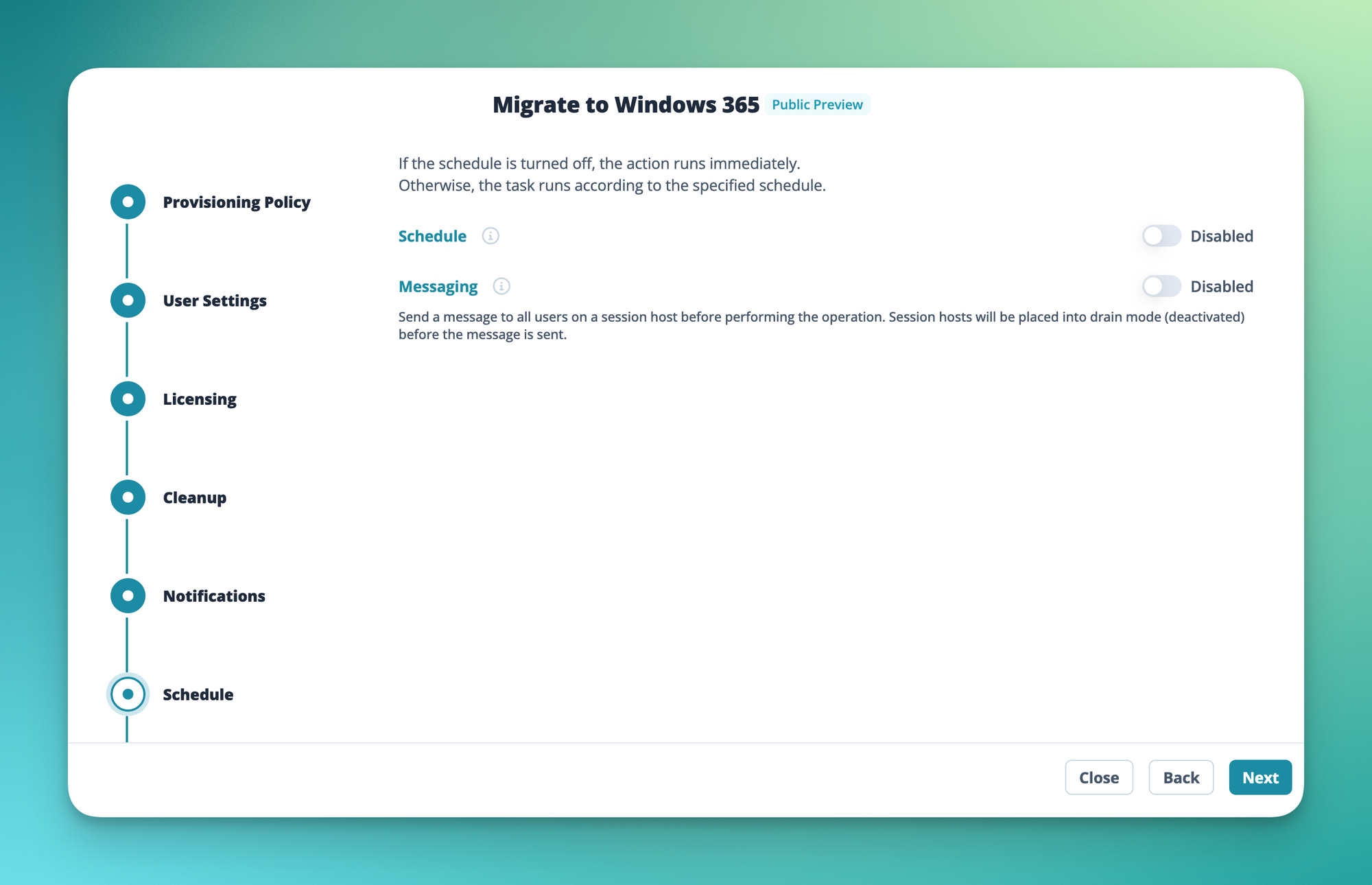
Like almost everything in Nerdio, the migration itself can be scheduled. Handy if you want the actual migration to run overnight for example.
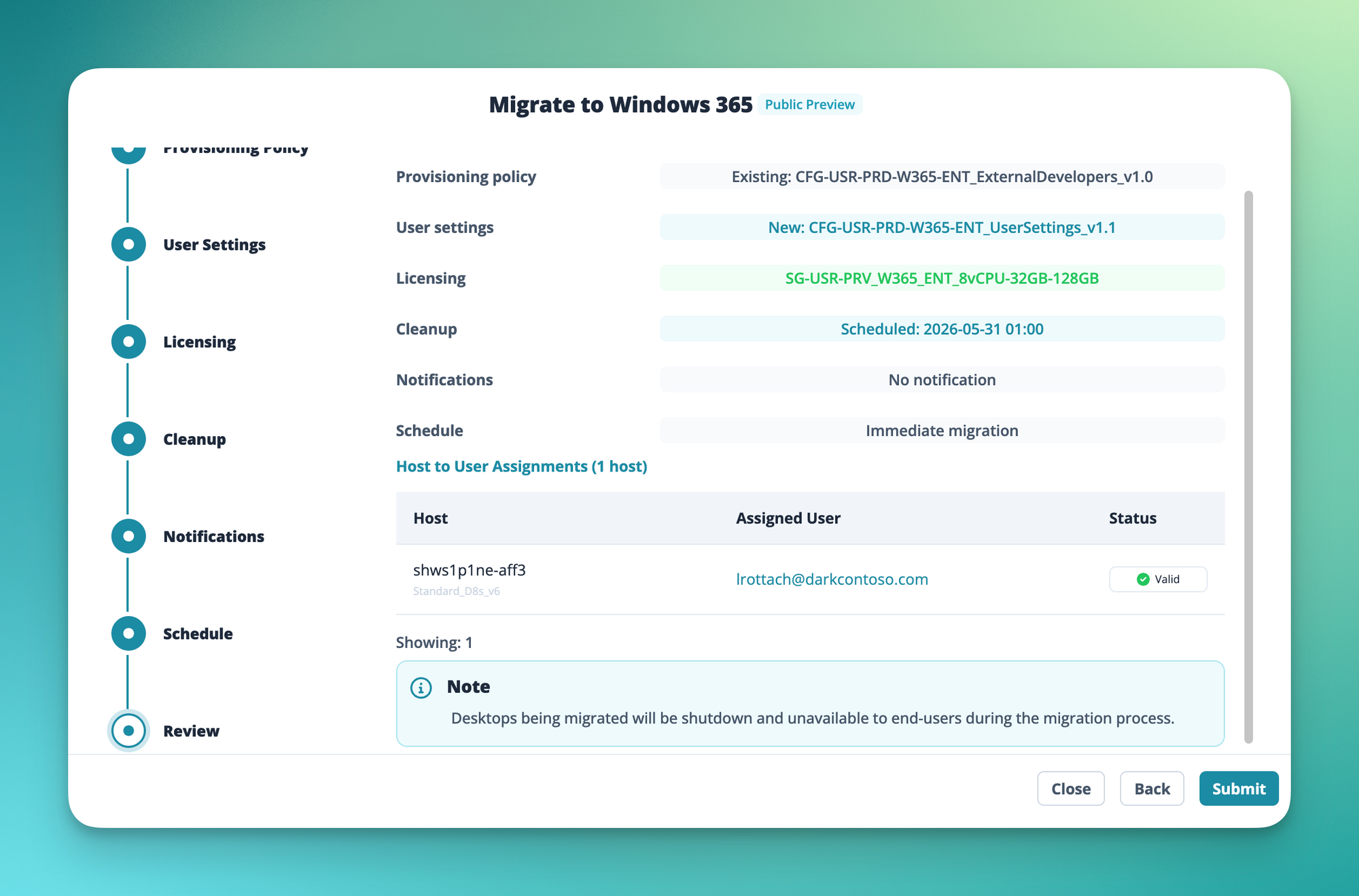
Finally, Nerdio shows a clean summary of everything you've configured. Time to hit submit.
The migration shows up in your host pool's task overview as a new In Progress task.
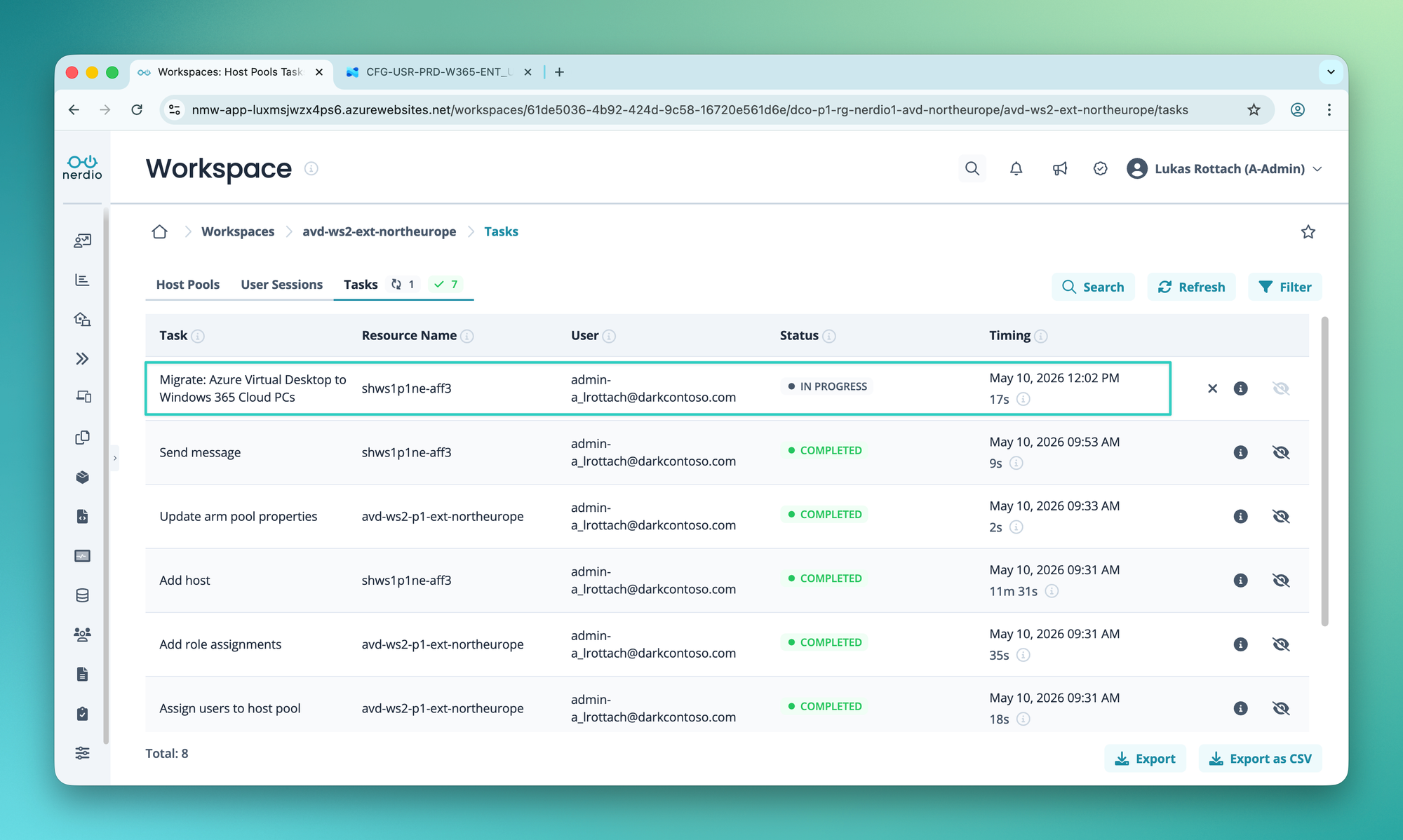
From my experience, the migration runs really smoothly and takes about one to two hours to complete.
Outcome
Now for the user experience. As soon as the migration is done, a new Windows 365 Cloud PC shows up in the Windows App alongside the old AVD desktop. Same configuration, same apps, ready to use right out of the box.
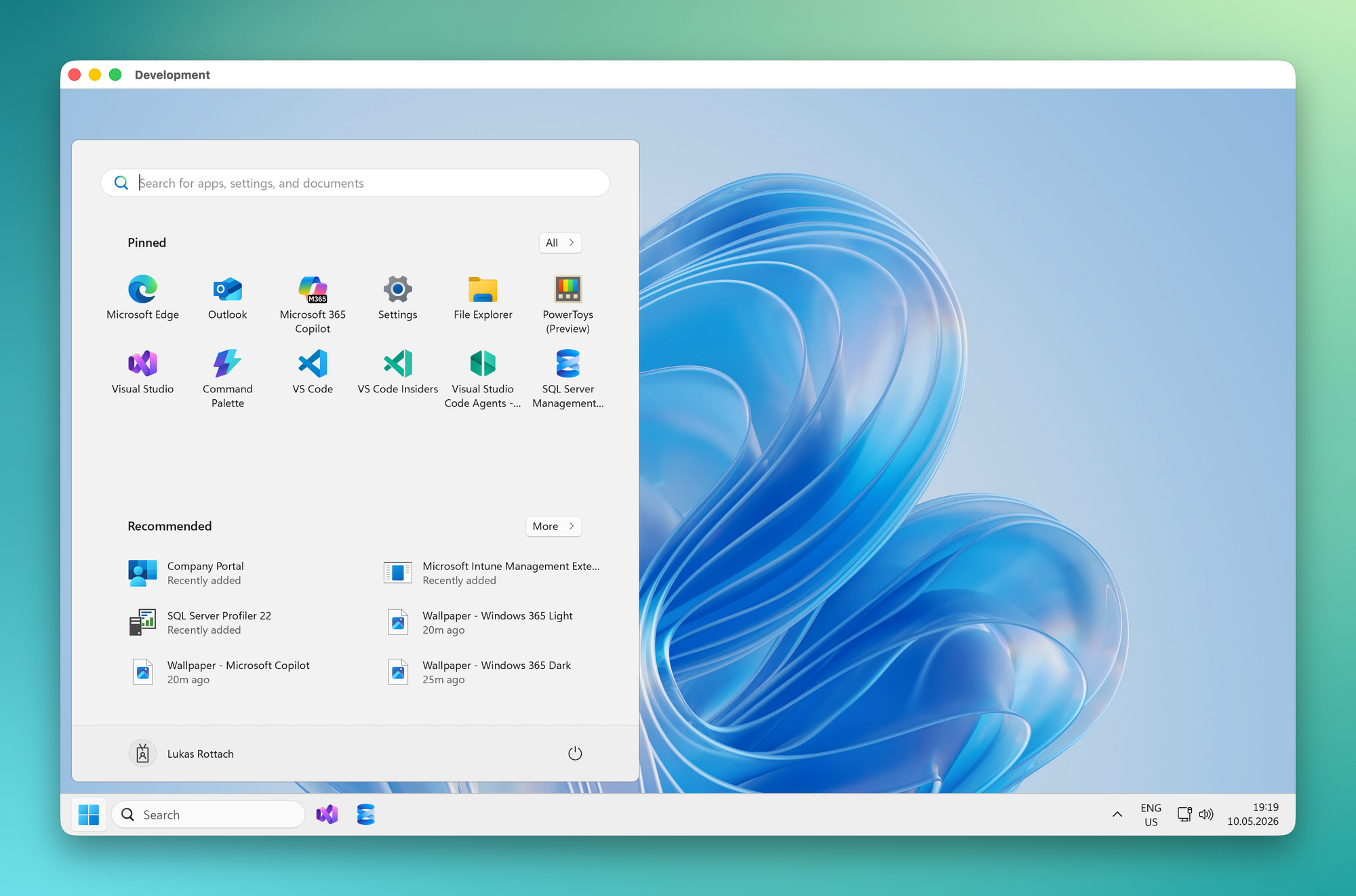
And here's the payoff. As soon as the user connects to the new Cloud PC, they're greeted by all their individual configurations and applications. Right where they left off on the old desktop.
Personal notes
I'm genuinely impressed by how straightforward this migration is with Nerdio. What could easily be a complex, multi-step infrastructure project turns into a guided wizard that handles the heavy lifting for you. If you're looking to modernize your desktop fleet and move away from self-managed AVD personal desktops, this is a solid path forward.
What matters most in these migrations is user experience and acceptance. The user might experience a brief period of downtime during the transition itself, but apart from that, the experience is excellent. They pick up exactly where they left off, with all their apps, settings, and personalization intact. And they connect using the exact same Windows App they were already using. For most users, the only visible change is a new entry in their connection list.
Happy migration! Cheers.
Member discussion