
Copilot Studio Computer Use powered by Windows 365 for Agents
For years we trained ourselves to interact with computers and their operating systems. Computer Use in Copilot Studio flips the script. Now the agent uses the app the way you and I do. By looking at the screen, moving a mouse, and clicking buttons like a slightly over-caffeinated intern who never needs a coffee break. The machine doing all that pointing and clicking. A Cloud PC, powered by Windows 365 for Agents. It is a strange and wonderful thing to watch your agent fumble for the login field, find it, and carry on.
As always, demos are easy. "Look, the agent clicked a button" makes for a nice screenshot and tells you almost nothing about whether this holds up in the real world. So instead of toy examples, I built some real world scenarios around an ITSM tool, and handed it to a Computer Use agent to see what it could actually do. In this post I will walk you through two scenarios where Computer Use could be a great fit.
Honestly, the most valuable part for me was everything I picked up in between, so do yourself a favor and read the Lessons Learned section at the end before you put one of these agents anywhere near production.
Introduction
Before we throw an agent at a real application, let's quickly cover the machine it runs on. Computer Use needs an actual Windows environment with a screen, a mouse, and a keyboard. In Copilot Studio Computer Use, that environment is provided by Windows 365 for Agents.
If you know Windows 365, you already know the core idea. It is the same Cloud PC platform, just with a different audience. Instead of provisioning Cloud PCs for people, it provisions them for agents. When your agent needs to perform a Computer Use task, it checks out a Cloud PC from a pool, does its work, and hands the machine back when it's done. You pay for the time the agent actually uses, not for an idle VM waiting around.
What I like about this model is that these Cloud PCs are not some black box. The Cloud PC pool is Microsoft Entra joined and Intune enrolled, so the machines your agents work on follow the same governance and compliance rules as the rest of your fleet. The pool also scales automatically based on workload, which means you don't have to think about capacity at all.
One more thing worth knowing. Computer Use is not the only thing running on this platform. Windows 365 for Agents is the engine behind a whole set of agentic experiences across the Microsoft ecosystem:
- Computer Use in Copilot Studio, which is what this post is all about
- Hosted Browser in Copilot Studio, a lighter Microsoft-managed option for quick web automation without any setup
- Researcher in Microsoft 365 Copilot, where the agent navigates websites in its own session to gather information
- Agent 365, where Cloud PCs for Agents can be integrated into your own or publicly available agents
For this post we'll stay focused on Computer Use, since that's where the interesting (and occasionally humbling) scenarios live.
Source: What is Windows 365 for Agents?
Building a Computer Use Agent
I won't turn this into a full setup guide. Microsoft has that part well covered, and the real value of this post lives in the scenarios and the lessons learned. But to follow along, you should know the basic building blocks.
In Copilot Studio, Computer Use is a tool you add to your agent, just like any other tool. There are three parts that matter.
The agent itself
Every Computer Use setup starts with a regular Copilot Studio agent. Its general instructions describe the role and behavior, the same way you would for any other agent.
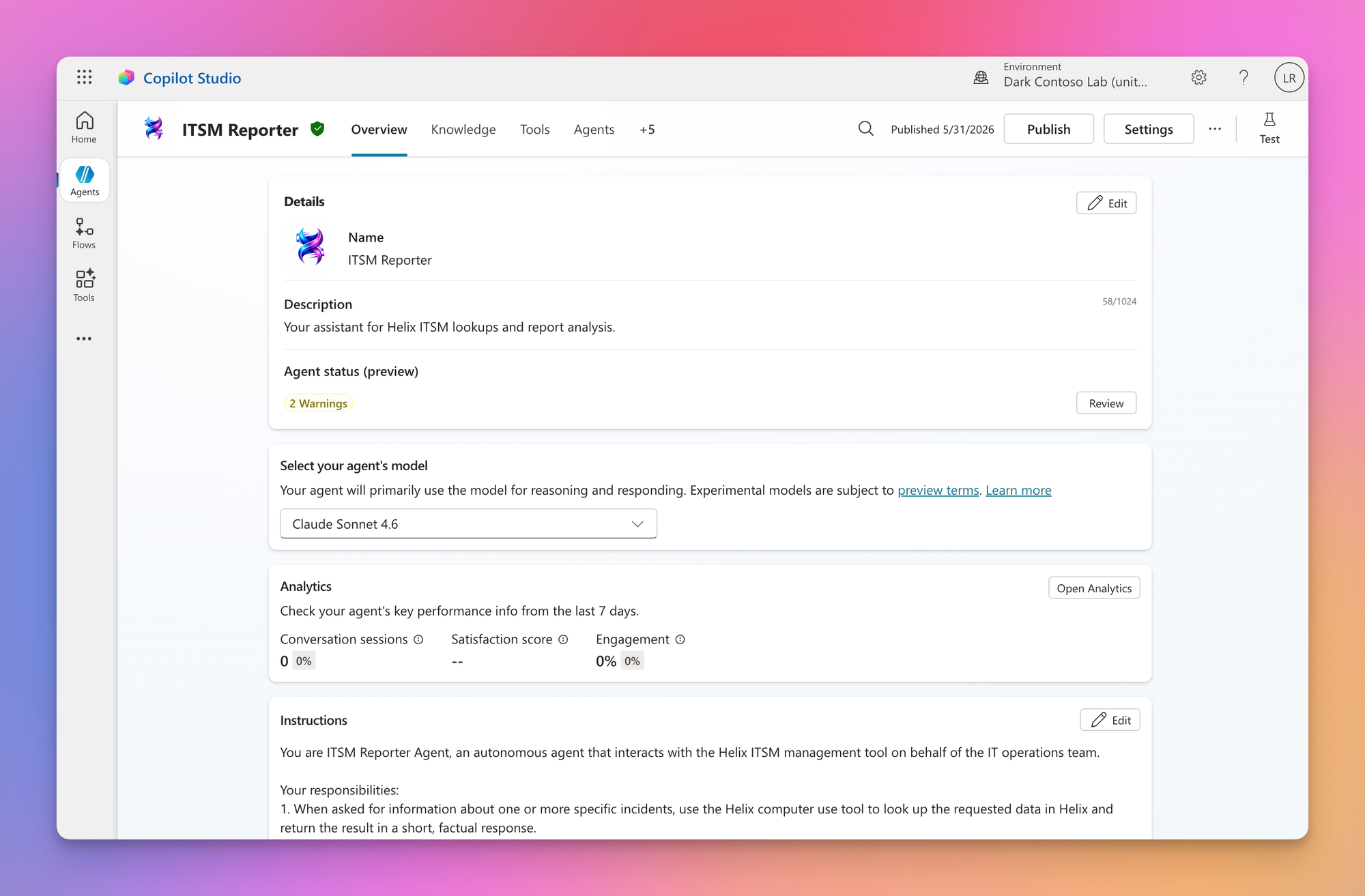
Don't go too much into details or specific instructions about how to interact with your application. Just describe the overall purpose of your agent and what it has to offer.
The Computer Use tool
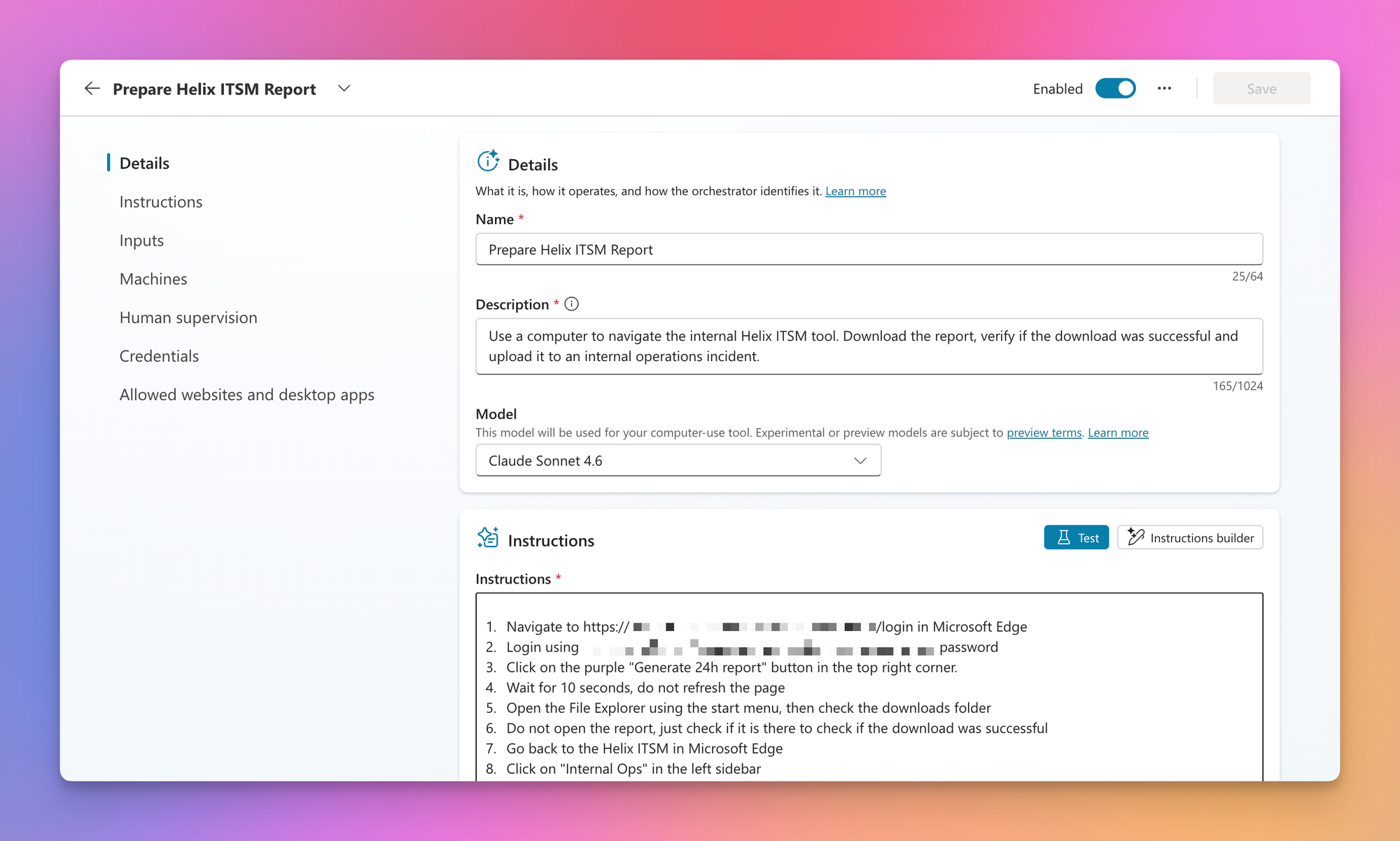
This is where it gets interesting. You add Computer Use as a tool available to your agent and describe in natural language what the agent should do on the machine and what information to return. No selectors, no recorded UI flows, no brittle automation scripts. Just instructions, as if you were explaining the task to a colleague.
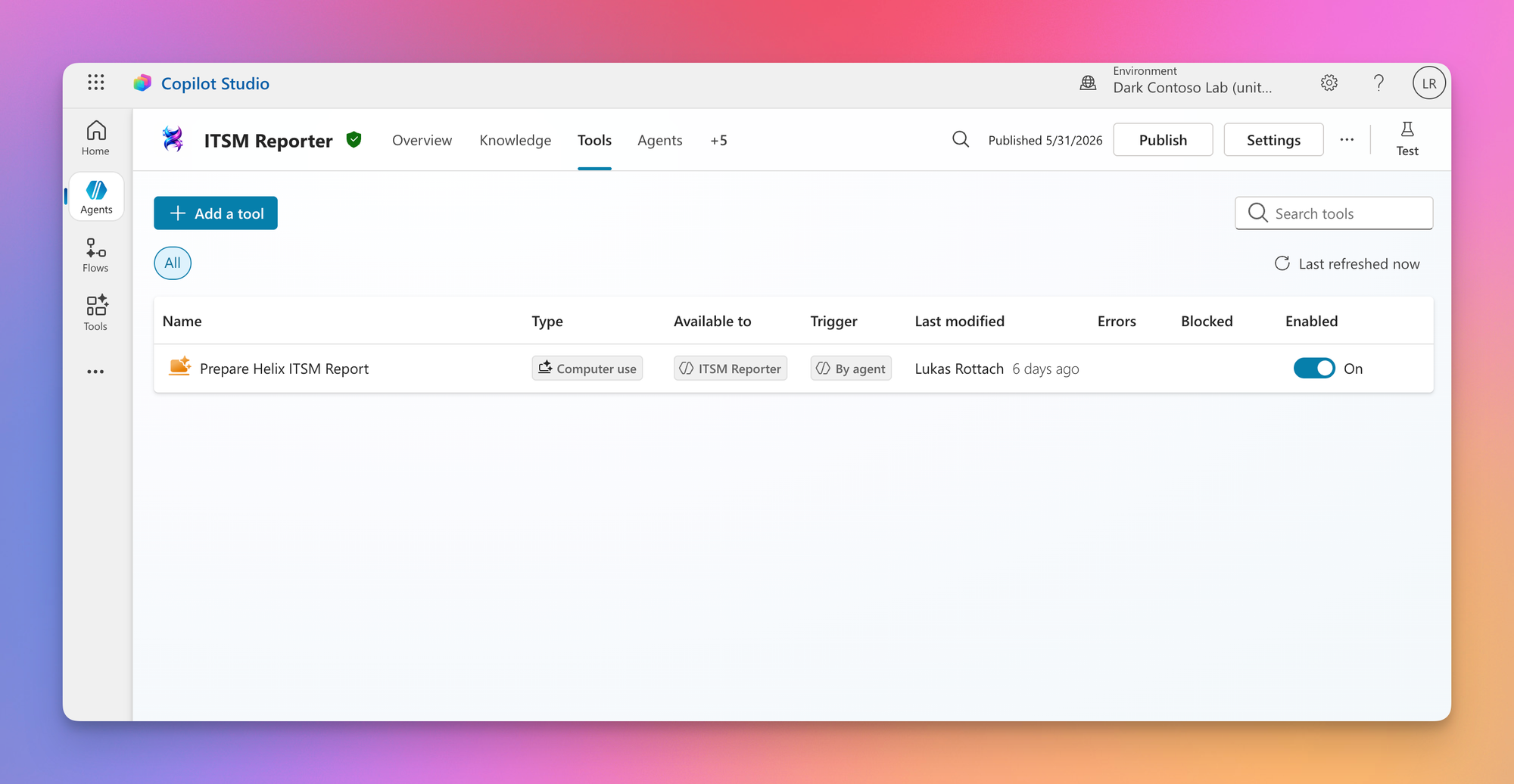
Try to have an eye on the description of your Computer Use tool, because that's what is going to be used by the agent to identify which tool works best for a specific request.
The environment it runs on
Finally, you decide where the agent actually works. Either the Hosted Browser for quick experiments, or a Cloud PC pool powered by Windows 365 for Agents for the full, governed experience we covered earlier.
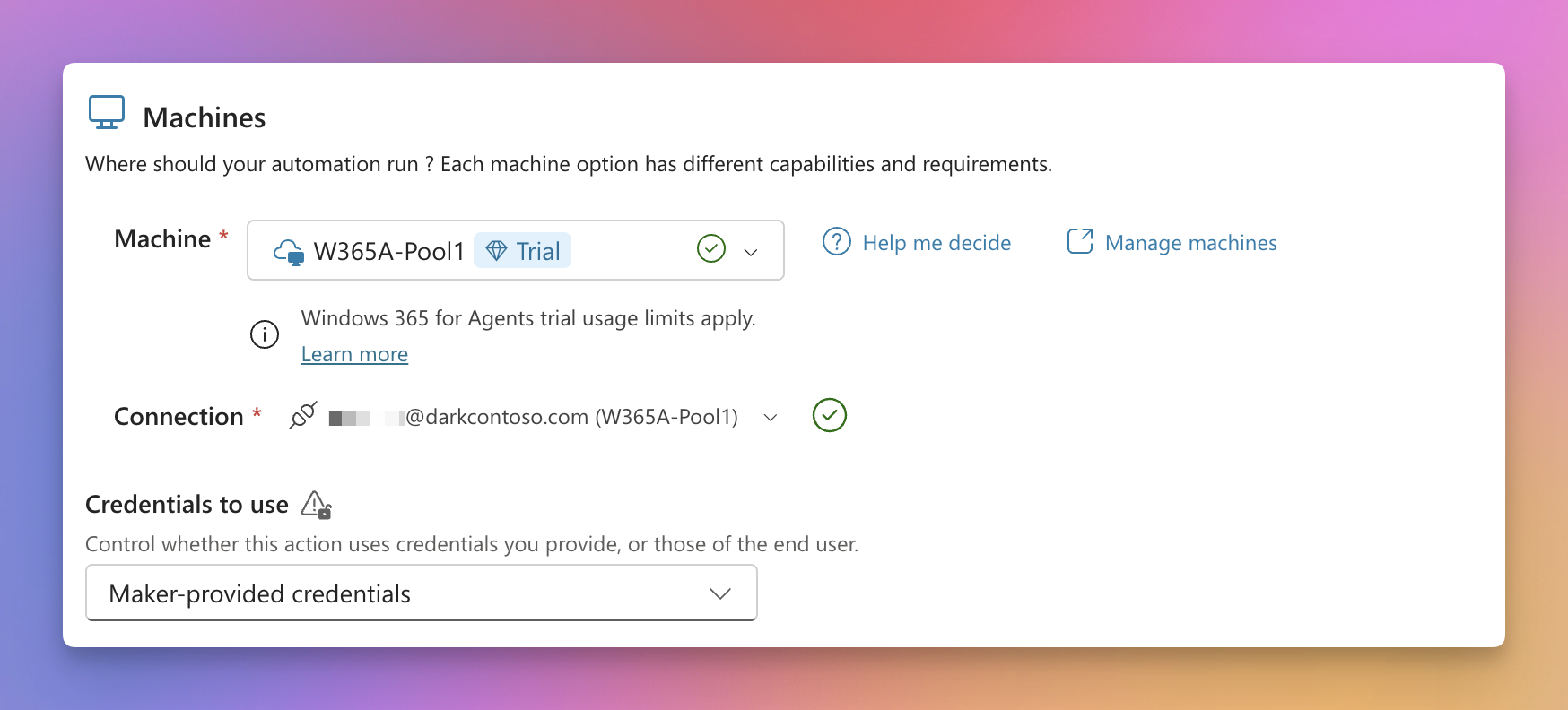
That's essentially it. You write instructions, the agent looks at the screen, decides what to click or type, and works its way through the task step by step.
The quality of those instructions is what makes or breaks the whole thing. We'll get to that in detail in the Lessons Learned, but keep it in mind while reading the scenarios. Everything the agent does well (or not so well) traces back to how it was instructed.
Source: Configure where computer use runs
Management
The great thing is that every Windows 365 Cloud PC for Agents is joined to Microsoft Entra and enrolled to Microsoft Intune automatically. That means you can check its compliance status, apply configuration, and deploy applications.
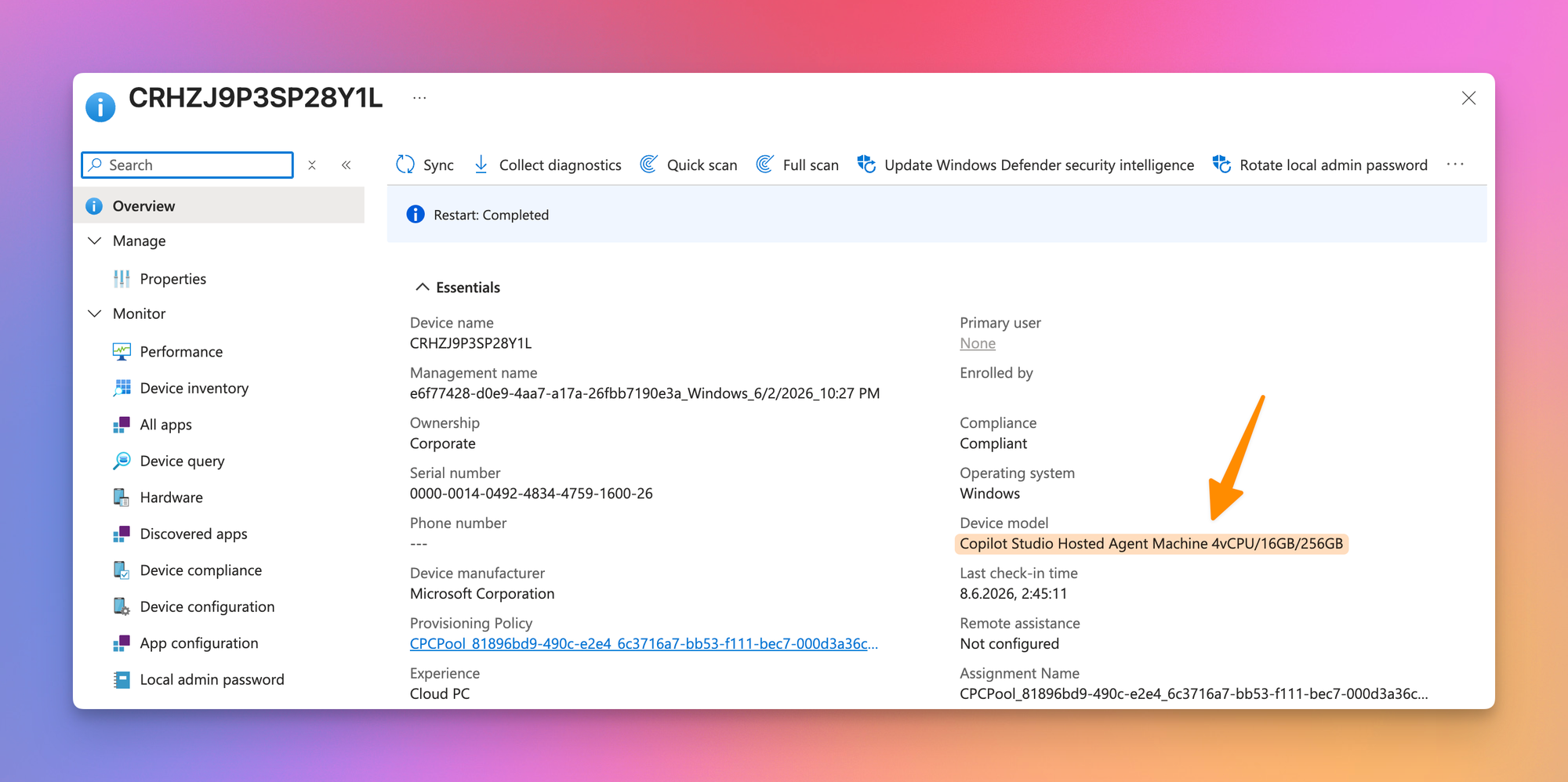
The Scenarios
Here's the thing about Computer Use. If a system offers a solid API or an MCP server, use that. It will always be faster, cheaper, and more reliable than an agent clicking through a UI. Computer Use shines exactly where those options don't exist, in legacy applications that were never built with automation in mind. No API, no MCP, just a login page and a lot of manual clicking. That's the gap Windows 365 for Agents is designed to fill.
To make this realistic, I built Helix ITSM, a fictional ITSM web application that behaves like the legacy tools many of us know from daily business. It has incidents, customers, account managers, and reports. What it doesn't have is any modern integration surface. Perfect, but not perfect 😅.
Against this tool, I'll run two scenarios that represent two different flavors of agent work.
Scenario 1: Extracting information
An operations manager needs details about a high priority incident. Which customers are affected, and who is the account manager for each of them? To answer that, the agent will:
- Log in to Helix ITSM
- Find the specific incident on the dashboard and open it
- Walk through every affected customer
- Extract the customer details and their related account manager
- Return the compiled answer to the employee
No data is changed, the agent is purely reading and connecting information that would otherwise take a human several minutes of clicking.
My prompt for that Computer Use tool looks like this.
- Navigate to https://xxx.net/login in Microsoft Edge
- Login using the provided credentions from credential store
- Search for the "Active major incidents" area
- Look for the incident requested by the user
- Check out the "Affected customers" panel
- Click on the first customer
- Look for the "Relationship manager" panel in the top right
- Note down the name and mail adress of that relationship manager
- Navigate back and repeat that for every customer left
- Return those as structured data "Customer Name", "Relation Ship Manager Name", Relation Ship Manager Mail Adress"
A request for that agent could be the following.
Search for the incident INC0010300 on the Helix ITSM Dashboard. Look for the relation ship manager assigned to each customer. I want to know the name and mail adress for each manager, so I can start investigation and escalation. Format the information requested as table.
The result is exactly what we were expecting. A well formatted table with information about the requested incident.
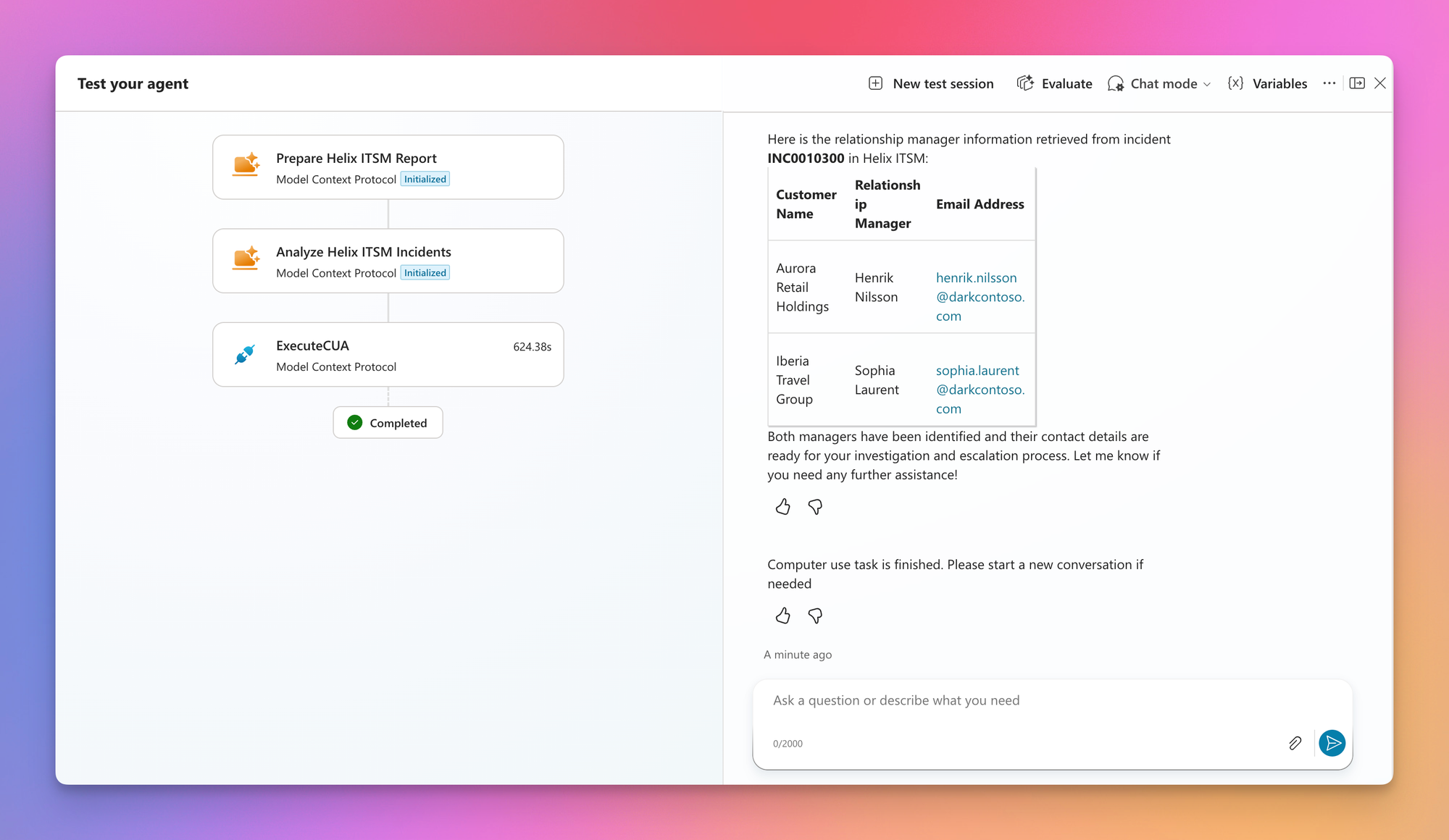
Scenario 2: Work on the file system
The operations lead is preparing for a performance review and delegates the prep work entirely. This time the task spans the web application and the local file system of the Cloud PC:
- Log in to Helix ITSM
- Download the performance report covering the last 24 hours
- Verify the PDF actually landed in the download folder of the Cloud PC
- Navigate back into Helix ITSM and open the internal incident
- Upload the report to the incident, ready for the performance review
The agent doesn't just read anymore, it interacts with the local file system and changes the state of the application.
My prompt for configuring this tool looks like this.
- Navigate to https://xxx.net/login in Microsoft Edge
- Login using the provided credentions from credential store
- Click on the purple "Generate 24h report" button in the top right corner.
- Wait for 10 seconds, do not refresh the page
- Open the File Explorer using the start menu, then check the downloads folder
- Do not open the report, just check if it is there to verify if the download was successful
- Go back to the Helix ITSM in Microsoft Edge
- Click on "Internal Ops" in the left sidebar
- Search for the incident mentioned in the request
- In the "Attachements" area click on "Attach report" (purple button)
- Use the file explorer window to browse for the previously downloaded PDF report in the downloads directory
- Check if the PDF file was successfully attached to the incident
Here it is important to be as precise as possible. My request looks something like this.
To prepare for my next ops performance review I want you to download the latest report covering the last 24 hours and upload it to the internal incident INC0010600. Confirm if the upload was successful.
Testing
As for every agent, I highly recommend testing everything back and forth. I would recommend using the integrated test panel, because here you can see exactly what your agent is doing while using the tools provided and where it might be failing.
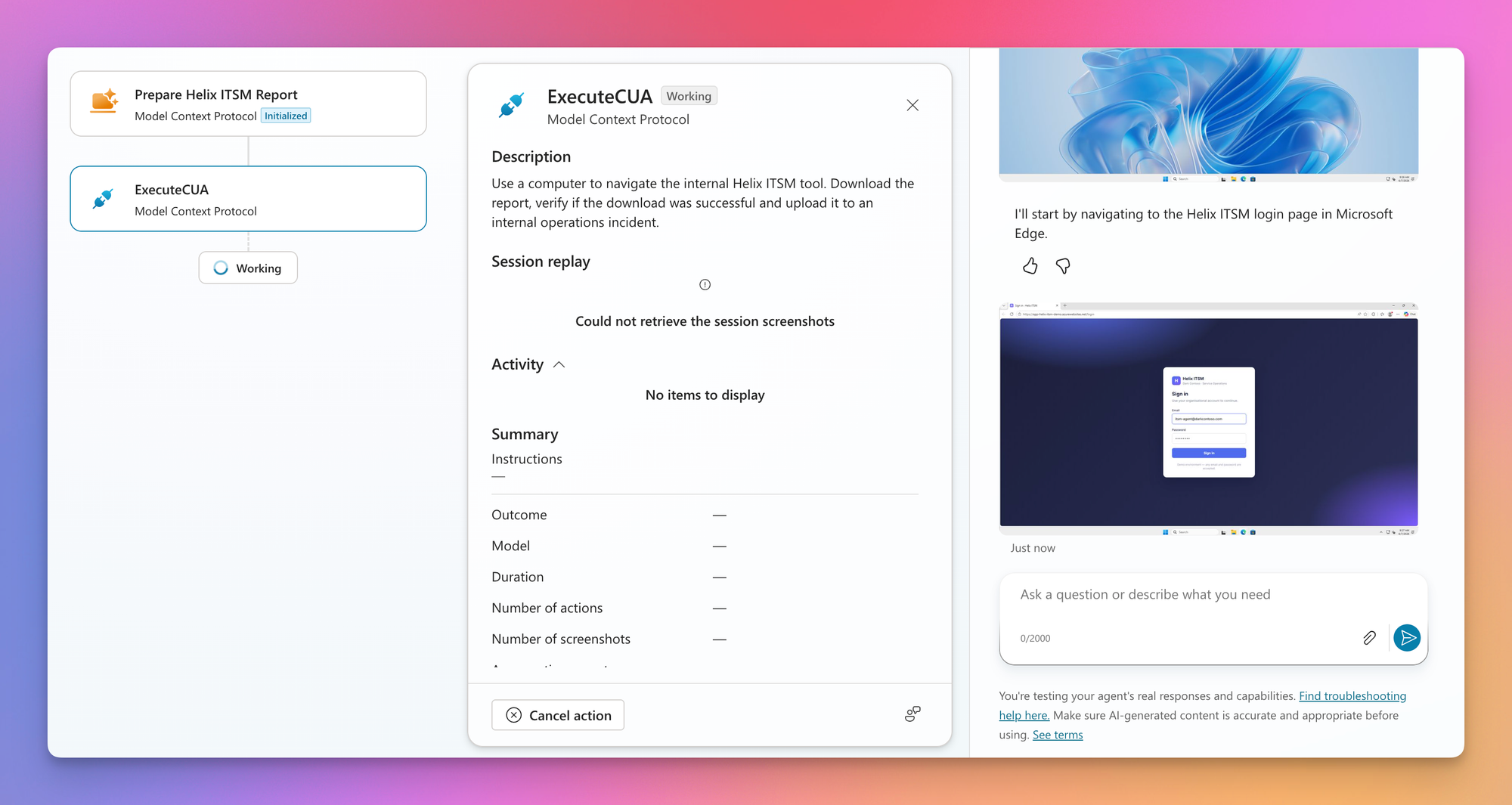
As soon as you fire up your prompt you are able to see which tools are loaded by your agent and that the ExecuteCUA step is initializing.
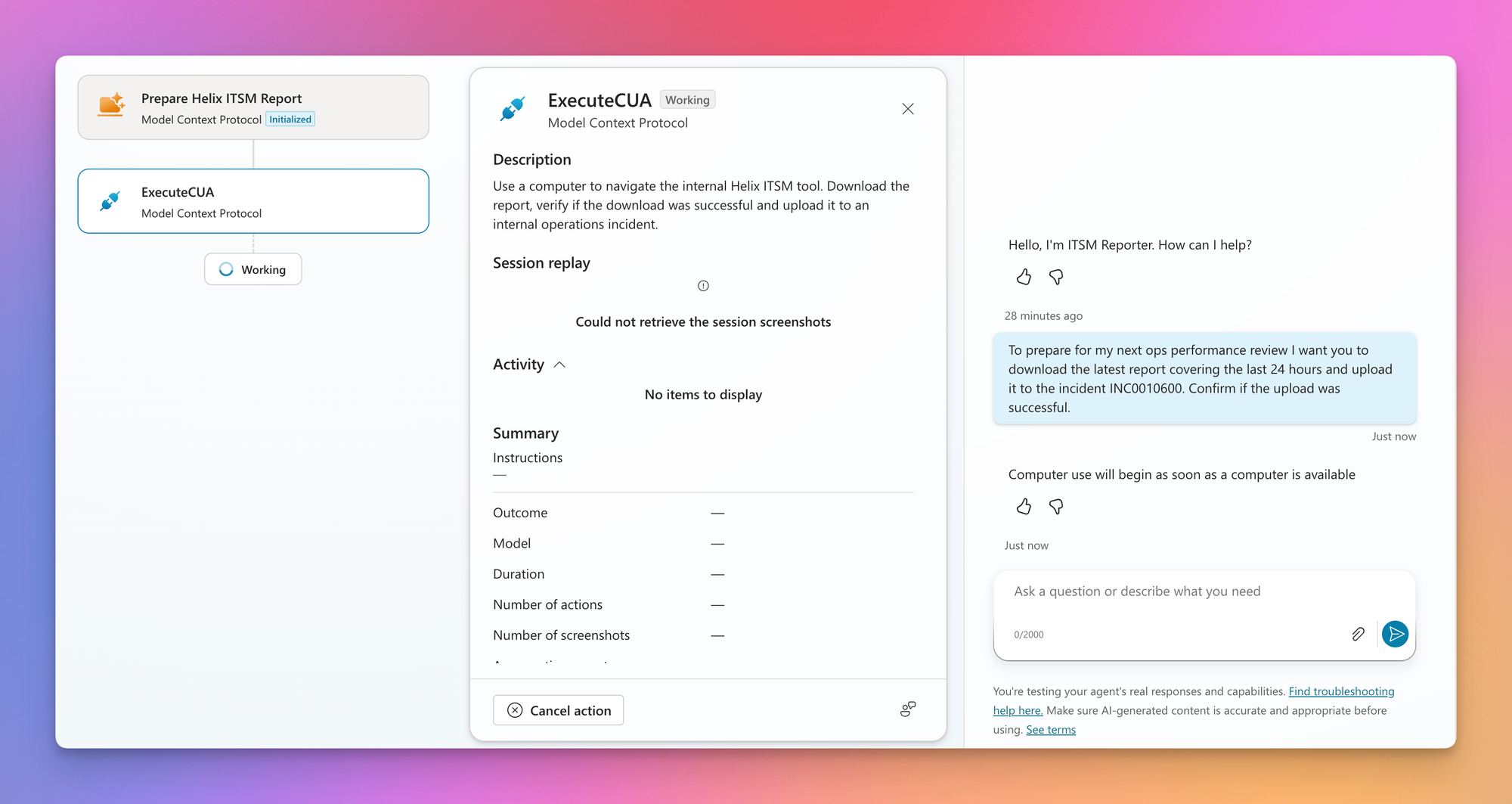
In the chat you can watch the agent report every step it's currently working on.
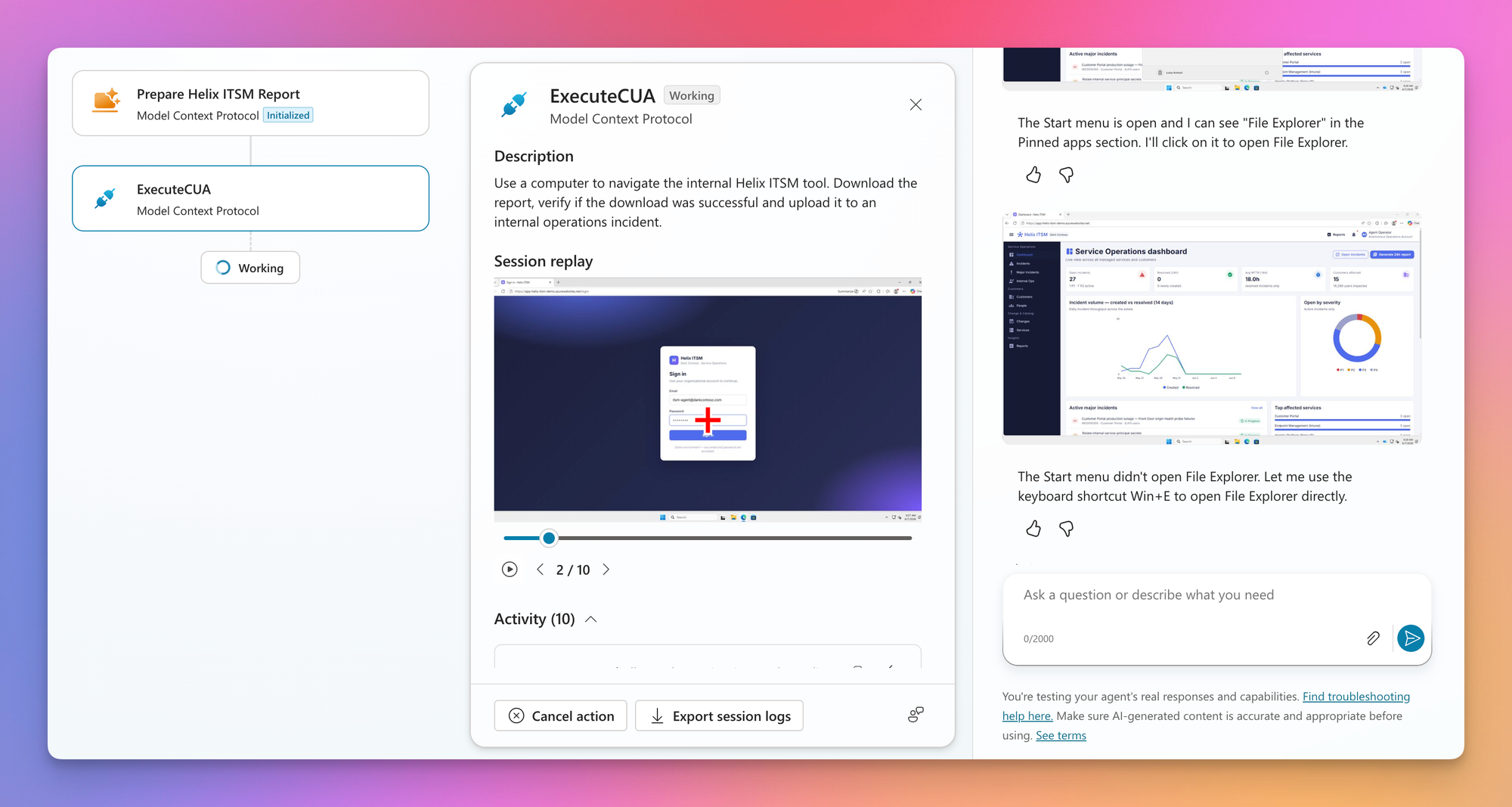
In the middle section of ExecuteCUA you can play an animation of the agent's session and even dive into every screenshot. The red cross marks where your agent clicked.
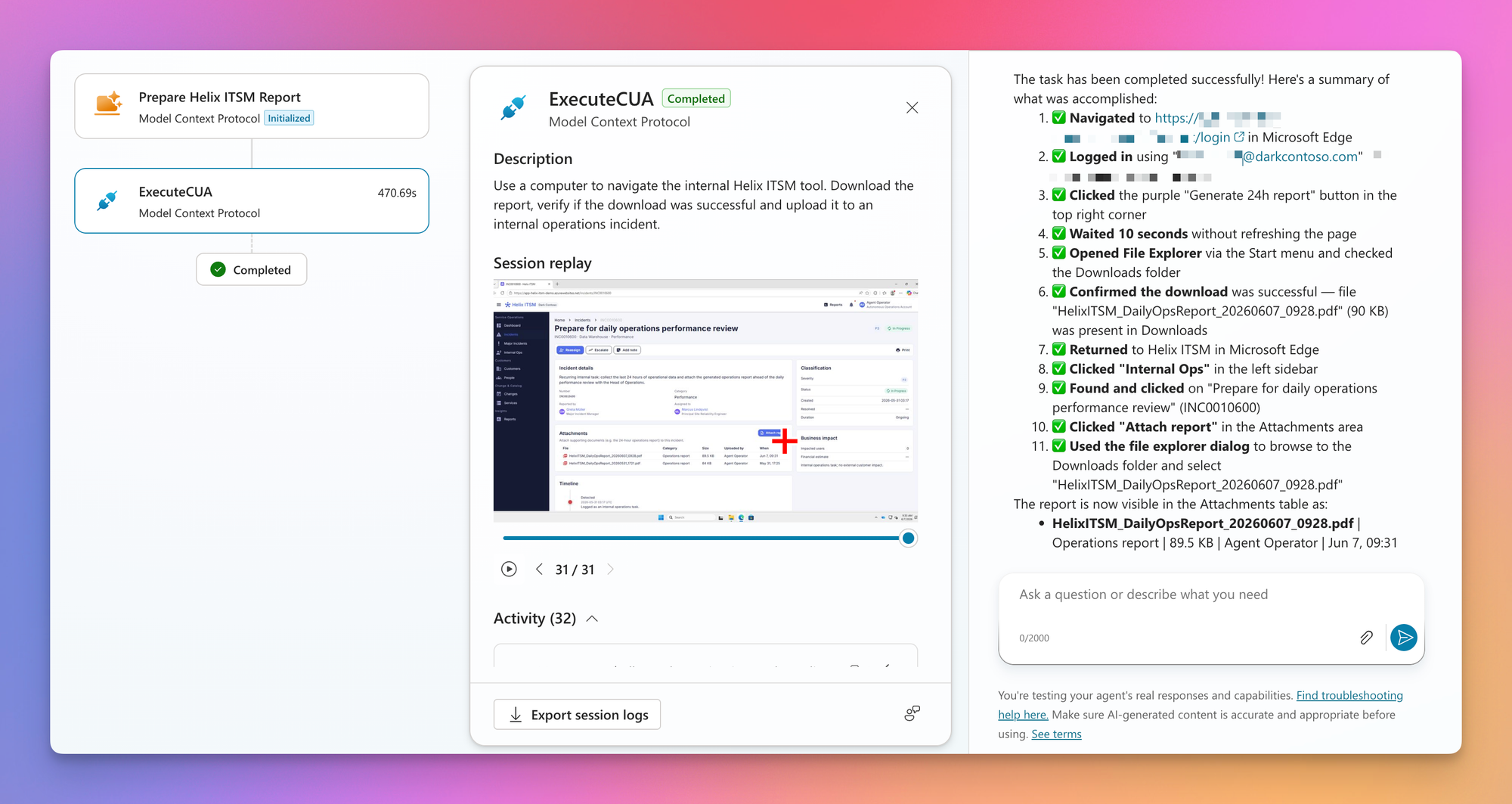
Here we go. As soon as the agent finishes its task, you get a beautiful summary to see if everything went well. If required you now can dive into the full session replay and check if there is room for improvement to make that workflow even more efficient.
Lessons learned
This is the part I was most excited to write. The weeks I spent poking at Windows 365 for Agents and Computer Use taught me far more than any documentation could, and most of it only clicked after watching the agent get things gloriously wrong. 😅 So here's everything I picked up along the way, handed to you so you don't have to learn it the same way I did.
Write better instructions
If there's one lesson that mattered more than any other, it's this one. The quality of your instructions decides almost everything about how the agent performs. Be precise, then be more precise.
The agent shares no context with you. It doesn't know your application or what you really meant. So spell everything out the way you'd explain a task to your colleague or even better, your grandmother. Name the buttons, describe where they are, and tell it what success looks like. The "obvious" steps are exactly the ones it gets wrong, as you can see in both scenario prompts earlier in this post.
Performance improvements
When you set up the Computer Use tool, you get to pick the model behind it. The choice is between the default Computer-Using Agent (CUA) and Anthropic's models, if your tenant has them enabled.
The default CUA is fine for very basic tasks, but it quickly ran out of road in my scenarios. Watching it work was honestly a bit painful. It frequently got stuck in loops, trying the exact same action over and over without ever realizing it was going nowhere.
Switching to Claude Sonnet 4.6 changed the picture completely. The same scenarios that used to take five to ten minutes suddenly finished in 30 to 60 seconds. The agent made better decisions, fumbled less, and actually understood when a step had failed. If your tenant allows it, this single setting is the biggest lever you have for both speed and reliability.
Source: Anthropic as a subprocessor for Microsoft Online Services
Precision improvements
Closely related to performance is precision, and this is where the default model really showed its limits. Across several of my projects the agent kept failing at the same kind of task, filling in a specific form or clicking a particular button. Watching it miss the same target again and again was enough to drive me up the wall.
In one of my earlier demos the agent simply could not hit a button. It clicked left of it, right of it, above it, anywhere but the button itself, no matter how precisely I described where to click. The instruction was clear, the agent just couldn't translate it into the right coordinates.
The fix was the same as for performance. Switching to Claude Sonnet 4.6 made the misclicks disappear almost entirely. My takeaway is that the default CUA struggles to orient itself in more complex or densely packed UIs, while Sonnet handles them with far more spatial awareness.
Least privilege still applies
Handing an agent the keys to a production application is not something to take lightly. It clicks fast, it doesn't hesitate, and it won't think twice before pressing a button you'd have paused on. So treat your agent like any other identity in your environment and give it only the permissions it actually needs.
The account behind the agent should be scoped down to the bare minimum for the task at hand. On top of that, be explicit in your instructions about what the agent is allowed to do. If a scenario is read-only, say so clearly and tell it not to change anything. The model is powerful, but it's only as safe as the boundaries you put around it.
Don't use it for heavy lifting
Computer Use has a sweet spot, and heavy analytical work sits well outside it. Asking the agent to open a 50-page PDF and reason over it is slow, unreliable, and expensive. Let it do what it's good at, navigating the UI and getting data out, then hand the thinking to a tool built for it. If you need to analyze large amounts of data, have the agent export it and run the analysis somewhere else.
The cost makes this even clearer, because Computer Use carries a double meter. Every Computer-Using Agent run is billed at the agent action rate of 5 Copilot Credits, and the Cloud PC compute is billed separately by runtime through Windows 365 for Agents, at $0.40 per hour for US geography, rounded up to the next full hour. The longer the agent churns through a giant document, the more compute you burn for a result you can't fully trust anyway.
Source: Billing rates and management and Pricing for Windows 365 for Agents
Wrapping up
Computer Use won't replace a clean API or MCP, and it shouldn't try to. But for those legacy systems that never got one, or for workloads that genuinely need a real operating system underneath them, it's a surprisingly capable bridge. As long as you instruct it well, pick the right model, and keep it on a short leash. I had a lot of fun watching these agents work, and even more figuring out where they stumble.
Now go let an agent click around in something. Just maybe not in production on day one.


Member discussion